How to Stop Spam Emails Permanently: 7 Methods That Actually Work
Three years ago I hit 200 unread spam emails in a single week. Not phishing, not malware — just relentless promotional garbage from companies I'd signed up with once, years earlier. Some I didn't even remember.
I tried the obvious things. Unsubscribed from lists. Blocked senders. Moved everything to spam. Two weeks later the volume was back to where it started.
The problem wasn't my effort. The problem was I was treating the symptom instead of the source. Spam doesn't stop when you block a sender — it stops when you cut off the supply of your email address to people who shouldn't have it.
Here are the 7 methods that actually reduced my spam by roughly 80% — and kept it there.
Why Most Spam Advice Doesn't Work
Before the methods, the honest context: spam is not a single problem. It has two distinct layers.
Layer 1 — Spam already in your inbox. These are senders who already have your email address. You can unsubscribe, block, filter, and report them — and you should.
Layer 2 — New spam arriving constantly. This happens because your email address keeps circulating: through data breaches, data broker sales, marketing list trading, and websites that share your sign-up data with partners.
<cite index="11-1">Most "fixes" don't actually stop spam — they just manage it temporarily. Once your email gets into one database, it often spreads to many more. That's why spam usually increases over time instead of staying the same.</cite>
Methods 1–4 in this guide address Layer 1. Methods 5–7 address Layer 2. Both matter. Most guides only cover the first four.
Method 1: Train Your Spam Filter (Don't Just Delete)
This is the most consistently skipped step — and the most valuable one for short-term cleanup.
When you delete a spam email, nothing changes. The sender still has your address. Your email provider learns nothing. The next message from the same operation (often from a different address or domain) lands in your inbox exactly as before.
When you report an email as spam, your email provider's machine learning system gets a signal. It learns to catch similar messages before they reach you. Enough reports from enough users and the entire sending pattern gets flagged.
How to do it:
Gmail: Open the email → Click the three-dot menu → "Report spam." Or select multiple emails in your inbox → Click the stop-sign icon at the top.
Outlook: Right-click the email → "Mark as junk" → "Block sender." Or use the "Junk" dropdown in the ribbon.
Yahoo Mail: Open the email → Click the three-dot menu → "Report as spam."
Apple Mail: Select the email → Click the "Junk" button in the toolbar.
The key habit: never just delete spam. Always report it. Over two to three weeks of consistent reporting, your filter gets dramatically better at catching the patterns hitting your specific inbox.
Method 2: Block Senders and Entire Domains
Blocking a single sender address is satisfying but limited — <cite index="16-1">spammers rotate addresses constantly, so blocking one address often just means the next message comes from a slightly different one.</cite>
The more effective move is blocking entire domains.
Gmail domain block: Settings → Filters and Blocked Addresses → Create a new filter → In the "From" field, enter @spammydomain.com → Select "Delete it" or "Skip the Inbox and Mark as read."
Outlook domain block: Settings → Mail → Junk email → Blocked senders and domains → Add the domain.
This catches every variant from that domain, regardless of what name or address they use on the left side of the @.
One important caveat: <cite index="14-1">More and more phishing attempts are disguising themselves as legitimate newsletters, tricking you into clicking the unsubscribe button, which is actually a malicious link.</cite> For any email that looks suspicious rather than just promotional, don't click anything inside it — report it as spam and block the domain directly in your settings.
Method 3: Unsubscribe From Legitimate Senders (Carefully)
There's a meaningful difference between legitimate marketing emails and actual spam:
- Legitimate marketing: Companies you once signed up with, sending promotions you no longer want. Their unsubscribe links actually work.
- Spam: Unsolicited emails from senders you never chose. Their "unsubscribe" links may confirm your address is active — triggering more spam.
The rule: only unsubscribe from senders you recognize. For everything else, report and block.
For legitimate marketing cleanup, the most efficient approach is bulk unsubscribe using tools that unsubscribe server-side (without clicking links in the emails themselves):
- Leave Me Alone — Scans your inbox for mailing lists, shows them in one view, lets you unsubscribe in bulk
- Clean Email — Groups similar senders, apply actions to entire categories at once
- Mailstrom — Bulk unsubscribe across Gmail, Outlook, Yahoo without clicking individual email links
Going through legitimate senders manually and unsubscribing is tedious but genuinely effective — it removes you from sending lists at the source, not just filters incoming messages.
Method 4: Strengthen Your Email Provider's Spam Filter Settings
<cite index="16-1">Every major provider ships a spam filter, and they catch most junk before you see it. The defaults are decent. The right settings get you the rest of the way.</cite>
Gmail:
- Settings → Filters and Blocked Addresses: Create filters for recurring spam patterns (subject keywords, sender domains)
- Settings → General: Enable "Ask before displaying external images" — this prevents tracking pixels from confirming your address is active to senders
Outlook:
- Settings → Mail → Junk email → Protection level: Set to "Exclusive" for maximum filtering
- Blocked senders list: Add domains proactively
Yahoo Mail:
- Settings → Security and Privacy → Spam protection settings
One underused setting across all platforms: Disable automatic image loading. When you open an email that loads images from an external server, a tiny 1-pixel "tracking pixel" often confirms to the sender that your email address is active and that you opened the message. Disabling auto-image-loading prevents this. You can still choose to load images in emails you trust — but spam senders stop getting confirmation that your address is live.
Method 5: Stop Giving Your Real Email to Everyone (The Upstream Fix)
Here is where most spam guides end — and where the actual long-term solution begins.
<cite index="16-1">Everything in Methods 1–4 manages spam that already knows your address. This method prevents spam from finding you — and it is the difference between stopping spam for a month and stopping it for good.</cite>
Your email address reaches spam databases through several channels:
- Websites sharing sign-up data with "marketing partners" (often in the fine print you didn't read)
- Data breaches — over 16 billion customer emails were exposed in a single 2026 breach
- Data brokers scraping and selling contact information
- Signing up for free trials, downloads, and promotions without reading privacy policies
- <cite index="12-1">Accepting all website cookie permissions — which may allow companies to share your data including your email with partners and advertisers</cite>
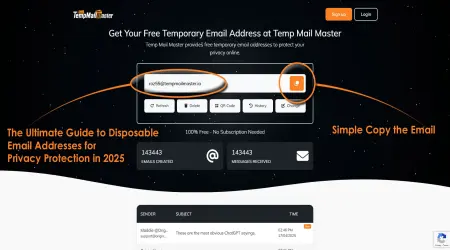
The solution is simple but requires a habit change: use a disposable email address from TempMailMaster.io for any sign-up where you don't have a genuine, long-term relationship with the service.
Free trial you're testing? Disposable inbox. eBook download? Disposable inbox. Webinar you're attending once? Disposable inbox. Website you've never heard of? Disposable inbox.
Your real email is reserved for banking, healthcare, government services, work, and accounts you actively use and trust. Everything else gets a throwaway address that expires before it can be added to a spam list.
For a complete breakdown of which sites regularly don't deserve your real address: 10 Websites That Ask for Your Email But Don't Deserve Your Real One
Method 6: Remove Your Email from Data Broker Databases
Even if you become careful about where you give your email going forward, your address may already exist in dozens of data broker databases built from past sign-ups, public records, and breach data.
Data brokers — companies like Spokeo, BeenVerified, Whitepages, Radaris, and TruePeopleSearch — build profiles on individuals and sell them to marketers. Your email, name, phone number, and approximate address are often included.
How to opt out manually:
- Search your name and email on major people-search sites
- Find your listing on each site
- Follow each site's opt-out process (most require submitting a removal request)
- Repeat quarterly — brokers frequently re-list removed data
This is time-consuming but effective. Tools like DeleteMe ($129/year) automate the process by monitoring 100+ broker sites and submitting removal requests on your behalf. For many people, the time saved is worth the cost.
Method 7: Check Your Breach Exposure and Respond
<cite index="14-1">If you've ever received a spam email from a business you've never interacted with, it's likely because they bought your address from a data broker or acquired it through a breach.</cite> A sudden spike in spam is almost always a sign that your email appeared in a new breach or was recently sold.
Check your exposure: Visit haveibeenpwned.com and enter every email address you use. The site shows exactly which breaches have exposed your address and what data was included.
If your email appears in a breach:
- Change your password on the breached service immediately
- Change the same password anywhere else you've used it
- Enable multi-factor authentication on your email account and other important accounts
- Monitor your inbox closely for targeted phishing attempts in the weeks following (spammers and phishing operations work quickly after breach data becomes available)
For a full breakdown of what happens after a breach and exactly how attackers use your email: What Happens to Your Email After a Data Breach?
The Layered Approach: Why You Need Both Sides
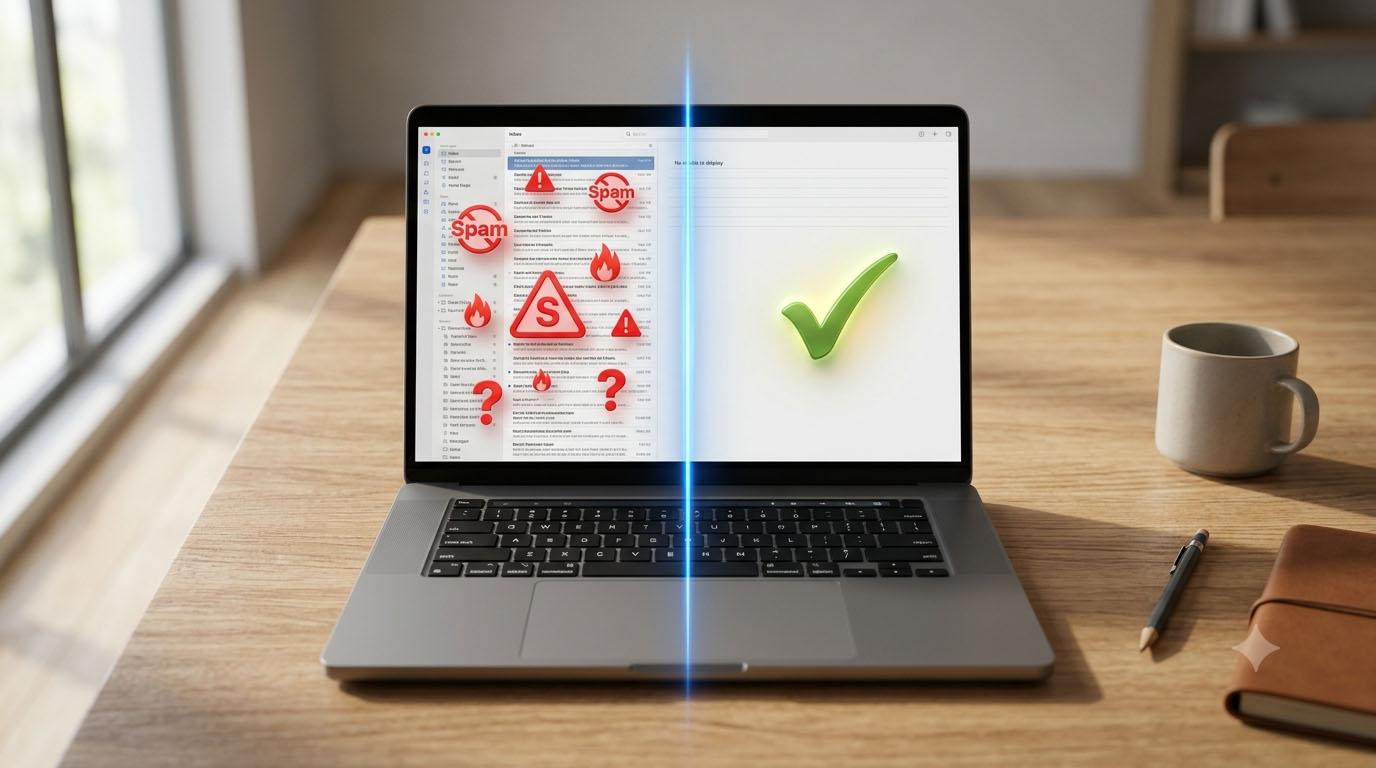
It bears repeating: reactive methods (1–4) and preventive methods (5–7) work together, not in isolation.
If you only do Methods 1–4, you're cleaning your inbox while the faucet stays open. Spam will keep flowing.
If you only do Methods 5–7, your existing spam problem continues while you protect only future sign-ups.
The complete approach:
This week: Report everything as spam. Block persistent domains. Unsubscribe from recognized senders. Tighten your filter settings.
Going forward: Use TempMailMaster.io for non-essential sign-ups. Opt out of data broker sites. Check haveibeenpwned.com quarterly.
<cite index="13-1">Done together, these steps cut spam to a trickle and keep it there.</cite>
A Real 90-Day Test
I applied all seven methods systematically over 90 days and tracked the results.
Week 1: Mass reported everything in my spam folder. Unsubscribed from 47 legitimate senders I'd accumulated over several years. Blocked 12 persistent domains. Turned off automatic image loading in Gmail.
Weeks 2–4: Inbox spam dropped noticeably. Filter was catching patterns it hadn't before. Still getting maybe 8–10 spam emails per day slipping through.
Month 2: Started using TempMailMaster.io as default for any new sign-up I wasn't fully committed to. Opted out of three major data broker sites. Checked haveibeenpwned.com — found my email in four breach databases I hadn't known about.
Month 3: Daily spam reaching my inbox was down to 1–3 messages. Compared to 25–30 before the experiment, this felt close to zero in practical terms.
The methods work. They require one focused afternoon to set up and a few new habits going forward.
Platform Quick Reference
| Action | Gmail | Outlook | Yahoo | Apple Mail |
|---|---|---|---|---|
| Report spam | 3-dot menu → Report spam | Right-click → Mark as junk | 3-dot menu → Report spam | Junk button |
| Block sender | Settings → Blocked addresses | Settings → Junk → Blocked senders | Settings → Security | Mail → Block contact |
| Block domain | Filters → Create filter → @domain.com | Blocked senders → Add domain | Blocked addresses | Rules → Block @domain |
| Disable image auto-load | Settings → General → Images | Settings → Mail → External images | Settings → Security | Mail → Privacy Protection |
| Tighten filter | Filters → Create custom filters | Junk → Protection level: Strict | Spam settings | Rules |
FAQ
Why does spam keep coming back after I block senders? Because spammers rotate sending addresses constantly. Blocking a single address stops that specific address — not the operation behind it. Blocking entire domains is more effective. The real fix is preventing your address from circulating in the first place (Method 5).
Is it safe to click "unsubscribe" in spam emails? Only for senders you recognize and trust. For unknown senders or anything that looks suspicious, clicking "unsubscribe" can confirm your address is active — which often leads to more spam. Report and block instead.
Why did my spam suddenly spike out of nowhere? A sudden increase usually means your email address appeared in a new data breach or was recently sold by a data broker. Check haveibeenpwned.com to see if you're in a new breach. Change your password on the affected service and monitor for phishing attempts.
Will using a temp email really make a long-term difference? Yes — for the category of spam that comes from sign-ups you later regret. If you use TempMailMaster.io for free trials, one-time downloads, and non-essential registrations going forward, those senders never acquire your real address. They can't spam what they don't have.
How long does it take to see results? With consistent spam reporting, most people notice improvement within 2–3 weeks as the filter learns your patterns. Unsubscribing from legitimate senders shows results within days. Data broker removal takes 2–4 weeks per site for removals to process.
What if I'm getting hundreds of spam emails per day? Start with Method 1 (reporting in bulk) and use a tool like Clean Email or Leave Me Alone to process large volumes without clicking individual emails. Then shift to Methods 5–7 to cut off the supply. It takes time, but the volume drops.
References
- Mailstrom — How to stop spam emails guide https://mailstrom.co/articles/how-to-stop-spam-emails-a-guide-to-cleaning-up-your-inbox/
- FTC — CAN-SPAM Act compliance guide https://www.ftc.gov/business-guidance/resources/can-spam-act-compliance-guide-business
- Have I Been Pwned — Data breach checker https://haveibeenpwned.com
- Google — Gmail spam and phishing protection https://support.google.com/mail/answer/1366858
- Microsoft — Outlook junk email settings https://support.microsoft.com/en-us/office/junk-email-filter-overview
- ENISA — Email security guidelines https://www.enisa.europa.eu/topics/cybersecurity-education
- Verizon DBIR 2025 — Email threat data https://www.verizon.com/business/resources/reports/dbir/
- Leave Me Alone — Spam reduction methodology https://leavemealone.com/blog
- Pew Research — Email privacy and spam concerns https://www.pewresearch.org/internet/
- CISA — Email security best practices https://www.cisa.gov/email-security
Published: June 2026 | Author: Arslan | Category: Email Privacy & Spam Prevention